
Before you start
Use an Apple Silicon Mac running macOS 15 or later. Allow screen recording in macOS when prompted. Microphone access is also needed if you want to record your voice.
Open the recording setup
Choose New recording and select a display or recording area. Keep the application you want to record open so it can appear in the audio selection.
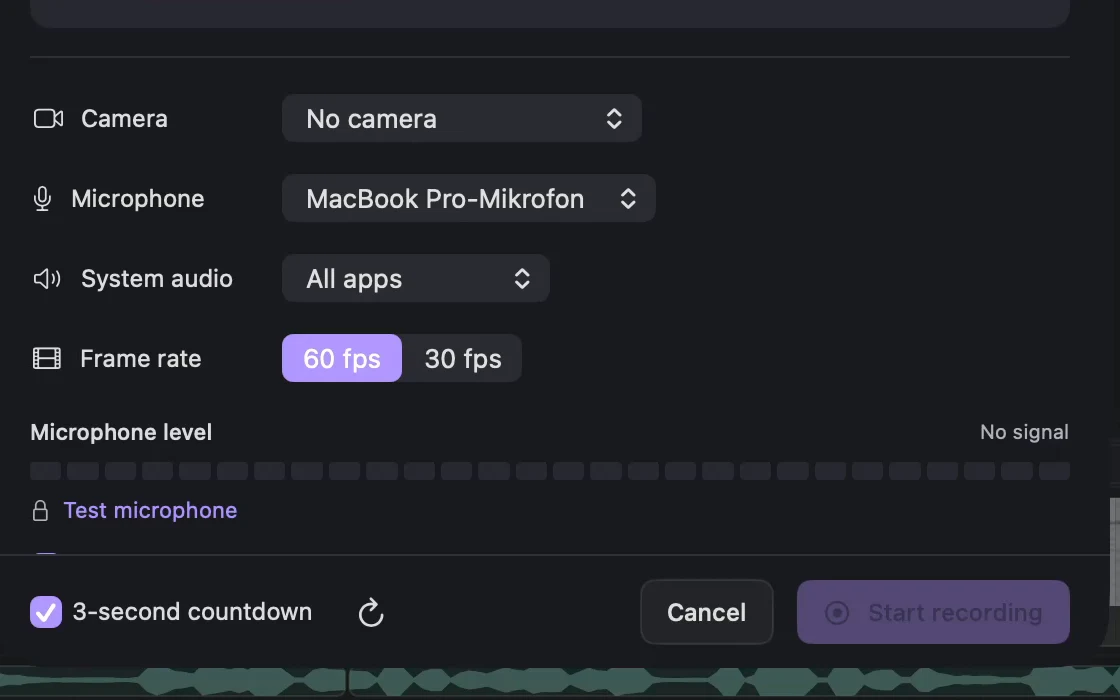
Lorivelle recording setup with microphone and system audio selectors. View full size Choose the internal sound
Set System audio to All apps to capture application sound, or choose Selected apps and check the applications you need. Choose Off for a silent screen recording. Selected apps means whole applications, including their browser windows; it does not isolate a browser tab.
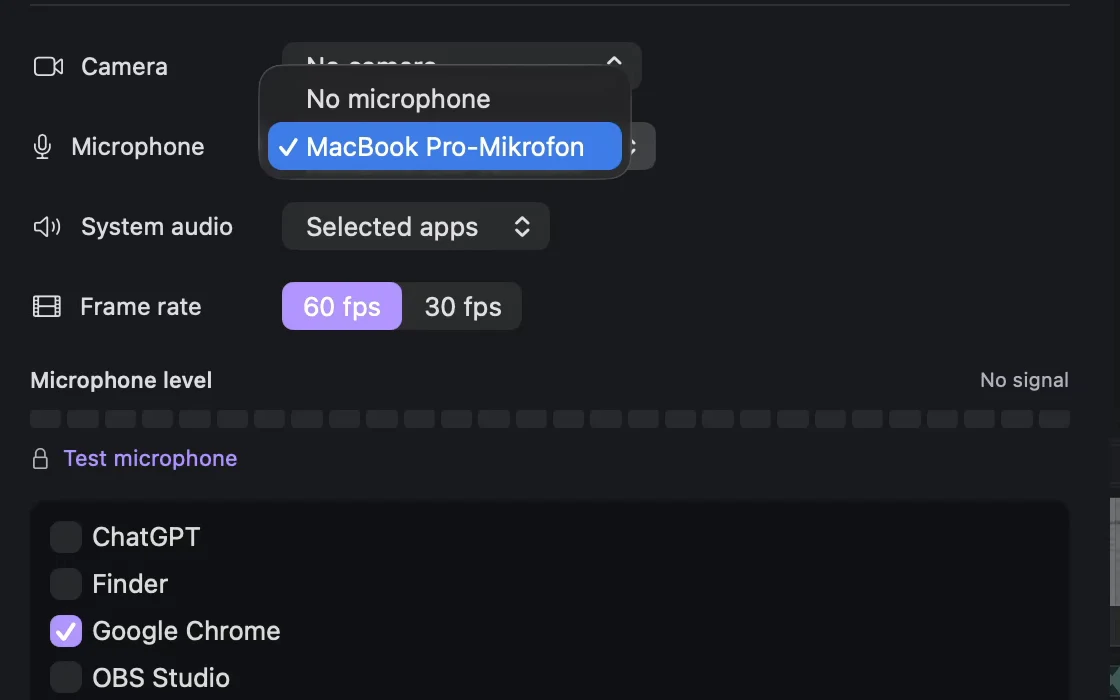
Selected apps audio mode and its application checklist in Lorivelle. View full size Add your microphone if you are explaining
Select the microphone you intend to use, or keep No microphone if only application sound is needed. Speak briefly and check the input level before starting. Make a short test take and listen to it before recording a longer lesson.
Balance the recording in the editor
After stopping, open Audio in the inspector. Microphone and System audio have separate volume controls when those tracks were recorded. Keep the application sound below your explanation. A level of 0% mutes that track; the original recording is preserved.
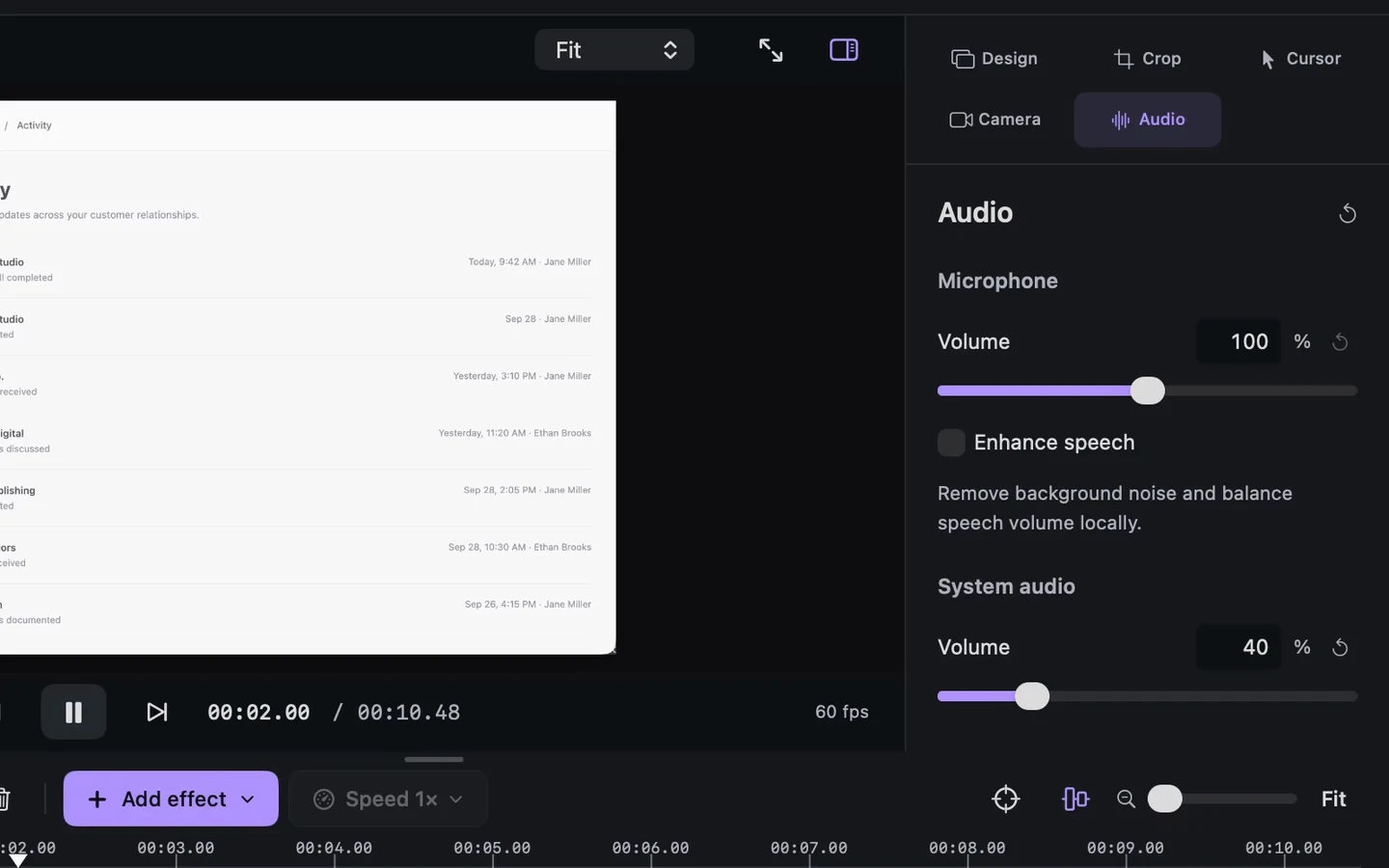
Audio inspector with separate microphone and system audio volume controls. View full size
A few things to check
Why is the application sound missing?
Check that System audio was enabled before you recorded. With Selected apps, at least one application must be checked. Make sure the application was actually playing sound, then record and listen to a short test take. The editor cannot recover sound that was not captured.
Can I keep my voice and internal audio separate?
Yes. Enable the microphone and system audio before recording. Lorivelle keeps separate controls for those recorded tracks in the audio inspector.
Why can I only see video audio in the inspector?
An imported video may contain a single combined audio stream. Its control is Video audio. Separate microphone and system audio controls appear for the corresponding tracks captured with Lorivelle.