
Before you start
Use an Apple Silicon Mac running macOS 15 or later. You can record and edit for free. A valid license is required when you save an editable project or export a finished video.
Install and open Lorivelle
Download Lorivelle without an account, open the DMG and drag the app into Applications. Open it there and choose New recording. Before a first take, arrange the application you want to demonstrate, silence unrelated notifications and close anything private that might appear in the captured area.
Allow the capture permissions you need
Allow screen recording in macOS Privacy & Security when prompted. Allow microphone or camera access if you enable those sources. Cursor recording and automatic click zooms do not require Input Monitoring or Accessibility permission. After changing permissions, follow macOS's instruction to reopen the app if required.
Choose a display or recording area
In the recording setup, select a display to capture the desktop or choose an area around the work. Include space for menus, dialogs and the result of your action. An area that is too narrow at the beginning may hide something you need later.
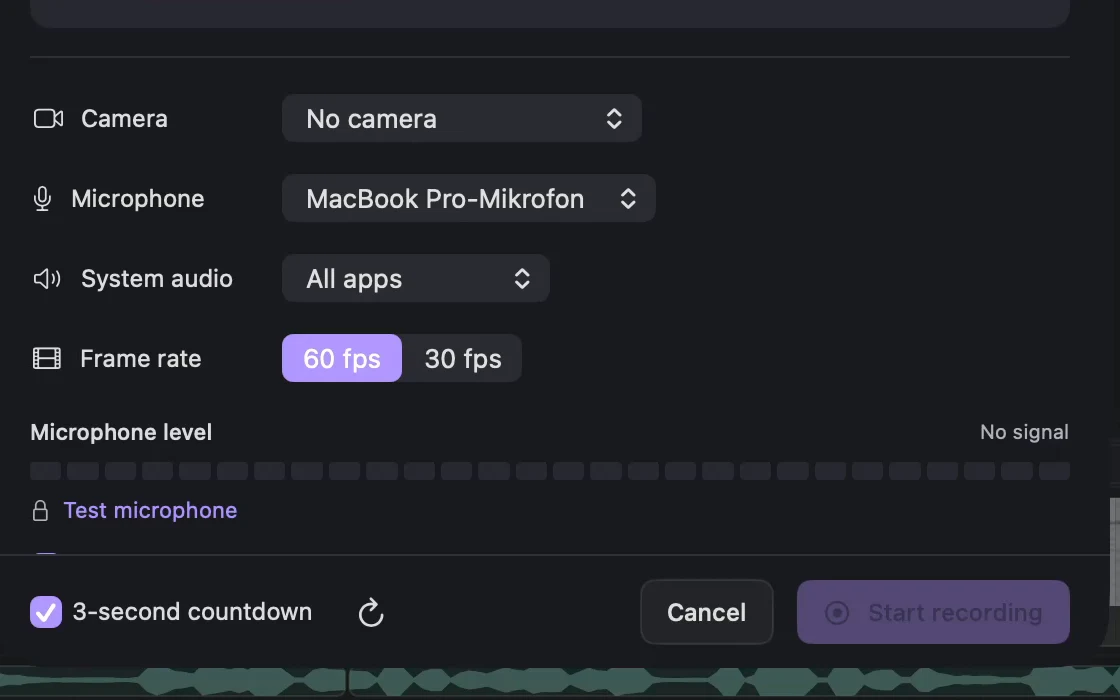
Lorivelle recording setup with capture area, microphone and system audio options. View full size Set the sound and optional camera
Choose your microphone for a spoken explanation, or No microphone for a silent take. System audio can capture All apps or Selected apps; keep it Off when application sound is unnecessary. Enable the webcam before recording if you want a separate camera track for fullscreen, split screen or an overlay later.
Record the task through to its result
Start recording and work at a pace the viewer can follow. Keep the setup, action and result in the take. Use Pause and Resume if you need to arrange something between steps, then Stop when the task is complete. Subtle automatic zooms are enabled for new recordings by default when a usable mouse track is available.
Review, refine and keep the result
Play the take in the editor. Check the captured area, narration, application sound and any zooms before adding captions or other effects. Cut unnecessary waiting time and cover private details that remain visible. With a valid license, save the editable .screenrec project for revisions and export an MP4 when you are ready to share.
A few things to check
Can I try recording before buying?
Yes. Download the Mac app without an account and record and edit for free. A license unlocks saving projects and exporting finished videos.
Why is a recording source unavailable?
Check the macOS permission for that source and that the device is connected. Screen recording, microphone and camera permissions serve different sources. Follow any macOS restart instruction after granting access, then make another short test take.
Can I import an existing video instead?
Yes. Open an MP4, MOV or M4V to edit it. A flattened video does not provide the separate mouse, microphone, system audio and camera tracks of a Lorivelle recording.