
Before you start
Open a recording with microphone audio, or import a video containing speech. Listen with headphones and choose a passage containing both speech and a short pause. Voice processing cannot recover a microphone that was switched off during recording.
Choose the track containing your voice
Open Audio in the inspector. A Lorivelle recording can have separate Microphone and System audio tracks. An imported video has Video audio. Apply voice processing to Microphone, or to Video audio when that combined track contains the speech you want to improve. Keep the system track for application sounds.
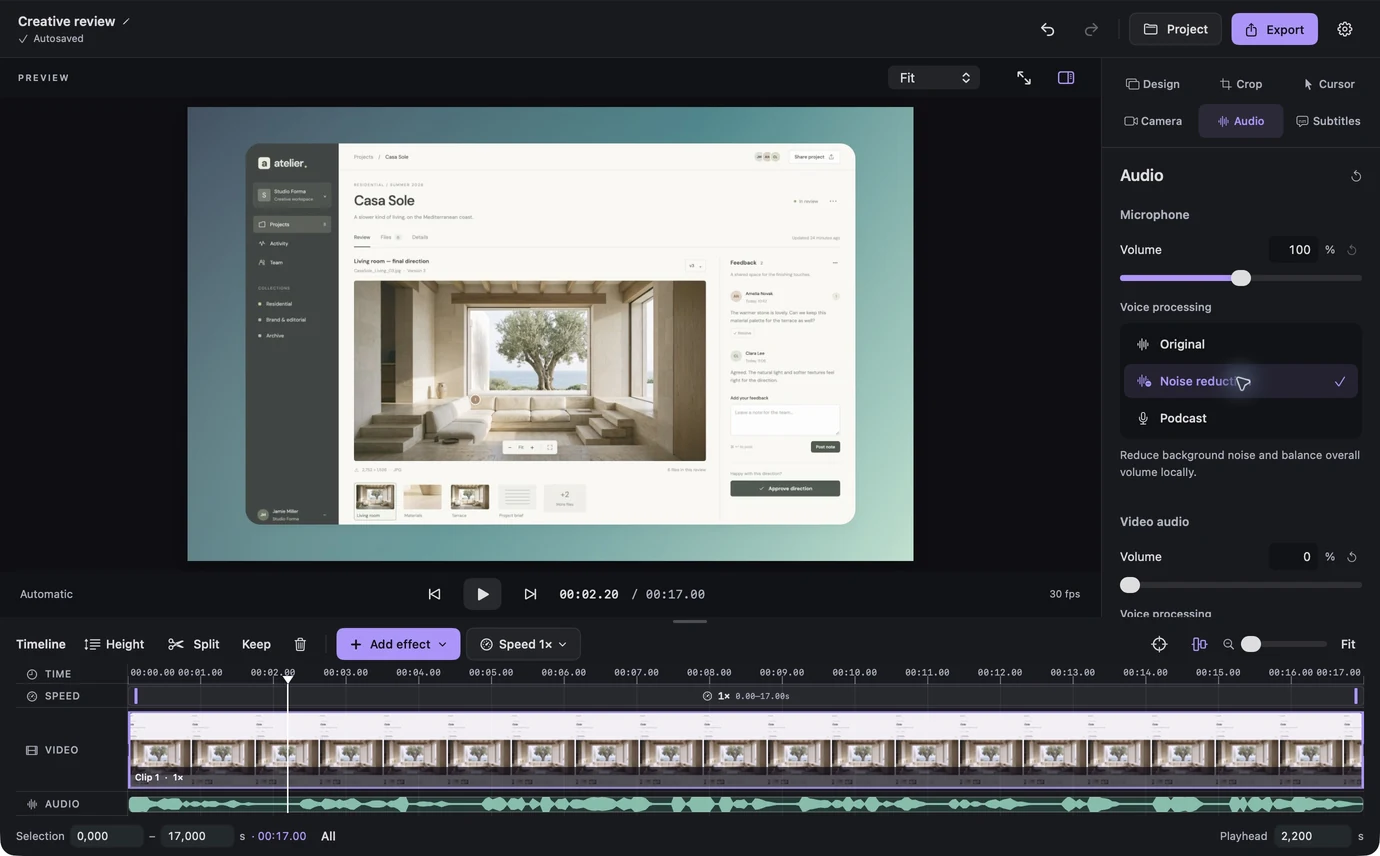
The current Lorivelle Audio inspector with separate voice processing controls. View full size Select Noise reduction
Under Voice processing, choose Noise reduction. Lorivelle reduces background noise and balances the overall voice level on your Mac. Wait for the preview update before listening. The original media files stay intact; selecting Original returns to their unprocessed sound.
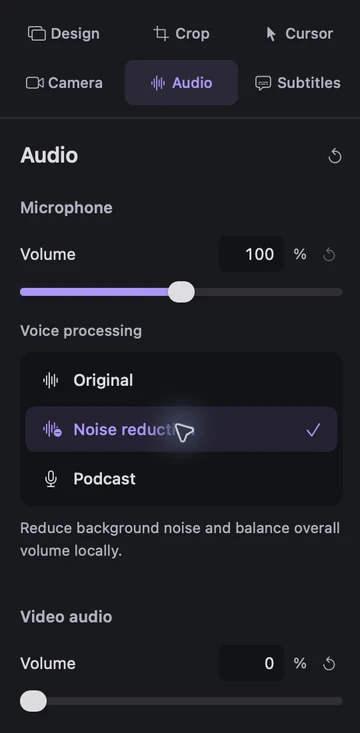
Noise reduction selected with its explanation in the Audio inspector. View full size Compare exactly the same passage
Move the playhead to a useful sentence and play it with Noise reduction. Return to the same point, select Original and listen again. Check consonants, breaths and pauses as well as the background. Keep Original when the recorded voice already sounds better without cleanup. The comparison above uses one controlled voice sample processed by the actual Lorivelle engine.
Balance voice and application sound
Adjust the track volume after choosing the processing mode. Keep application audio low enough that the explanation remains easy to follow. A setting of 0% mutes that track. If your imported file combines speech and music, voice cleanup affects that combined audio; compare carefully or use Original.
Listen to the finished export
Check the start, the quietest sentence, any louder passages and the final words. Save the editable project, then export and listen to the delivered file as well. Preview and export use the same voice-processing settings. A license unlocks saving and export.
A few things to check
Does voice cleanup upload my recording?
No. Noise reduction and Podcast processing run locally on your Mac. Voice processing does not need a cloud account or a downloaded speech model.
Why can I only see Video audio?
An imported video usually contains a combined audio stream. Lorivelle cannot separate its microphone from application sound afterwards. Separate Microphone and System audio controls belong to tracks captured separately.
What is the difference between Noise reduction and Podcast?
Noise reduction reduces noise and balances overall level. Podcast also evens out quieter and louder speaking passages with compression and makes a gentle tonal adjustment. Compare both with your own recording.
Can I undo the change later?
Yes. Use Undo for the last edit, choose Original, or reopen the saved project and change its Audio settings. The original source media is preserved.