
Before you start
Complete the main cuts and speed changes first. Choose a track with clear speech and select its language. Review names, settings and numbers against the spoken explanation after generation.
Generate captions from speech
Open Subtitles in the inspector, or choose Generate captions from Add effect. Select the microphone, video audio or system audio, choose English or German and pick a style. Download the speech model once, then click Generate captions. Recognition runs locally and works offline after installation; your recording is not uploaded. The captions appear as editable timeline blocks.
Add a subtitle manually
Select the interval where the words should appear, then choose Subtitle from Add effect. Enter the text in Subtitle text. One short phrase is easier to read than a full paragraph, particularly when the screen also contains instructions.
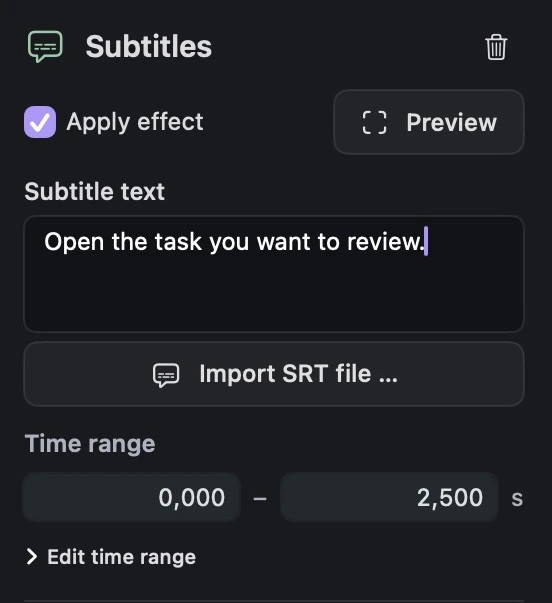
Write a short subtitle and set its time range, or import an SRT file. View full size Import prepared captions from SRT
Choose Import subtitles (SRT) from the Effects menu, or Import SRT file in the subtitle inspector. Select your local .srt file. Each cue becomes an editable subtitle effect tied to the corresponding part of the timeline.
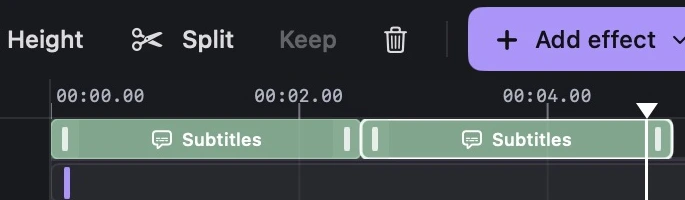
The two imported SRT cues become separate subtitle blocks. View full size Check the SRT timecodes
Each cue needs a number, start and end timestamps, the caption text and a blank line before the next cue. Use hours:minutes:seconds,milliseconds. The following two cues are a small format example; replace both words and times with your own edited video's timing.
Download the SRT example1 00:00:00,000 --> 00:00:02,500 Open the task you want to review. 2 00:00:02,500 --> 00:00:05,000 Check the final item and leave a note.Adjust the text, style and interval
Select a subtitle block to correct the wording, its appearance and its Start and End. Inspect the preview at the size viewers will use. Keep captions away from controls and other text that the explanation depends on.
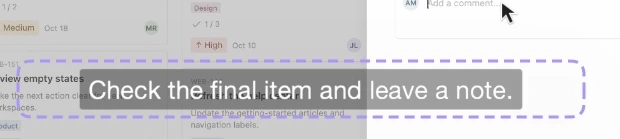
Select a subtitle to adjust its position in the preview. View full size Review the export with sound off
Watch the complete edit without sound, then check it against the narration. Look for late words, overlapping phrases and lines that disappear before they can be read. Export the finished video only after both timing and readability are clear.
A few things to check
Does Lorivelle generate a transcript?
Yes. Generate captions recognizes English or German speech locally and creates timed, editable subtitle blocks. The speech model needs one download. Check the wording after recognition; manual captions and SRT import remain available.
Can I change an imported subtitle later?
Yes. Select its timeline block and edit its text, appearance or interval. Imported cues remain editable effects rather than a single flattened caption track.
Why is my SRT rejected?
Check cue numbering, timestamp syntax and blank lines. Each end must be after its start, and the intervals must fit within the edited playback duration. Use the small downloadable example to check the format.