
Before you start
Open your recording and play it once. Decide where the useful action begins and ends. Finish the main cuts and speed changes before importing captions that were timed for the final playback.
Select the useful interval
Select a video range on the timeline. Check the selection start and end so they include the setup and result. Keep enough lead-in to understand the first action, especially when the take starts with a click.
Keep the selection or remove a wait
Use Keep to retain only the selected interval. To remove a wait inside the recording, select that range and use Remove selection. Make sure a video range is selected: deleting a selected effect removes the effect instead of the video.
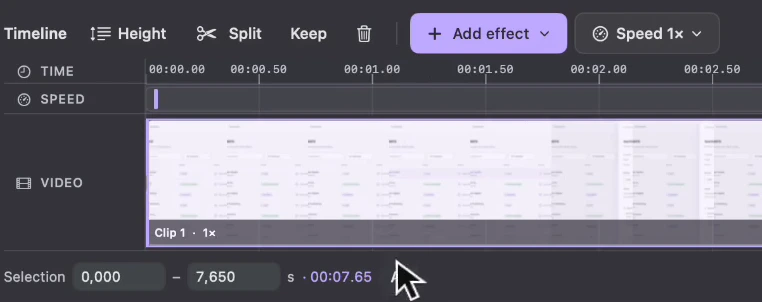
Keep the selected interval, with its start and end visible below the timeline. View full size Split or trim when you need finer control
Move the playhead to a cut and use Split. You can then trim a clip's start or end by dragging its edge. Play across the join and confirm the next action still has the context it needs.
Change the speed of a chosen section
Select a video interval or an existing speed section and open Speed. Choose a preset such as 2× or 3×, or enter a custom value from 0.25× to 8×. Keep explanations at a pace that viewers can understand; faster is most useful for predictable waits or routine typing.
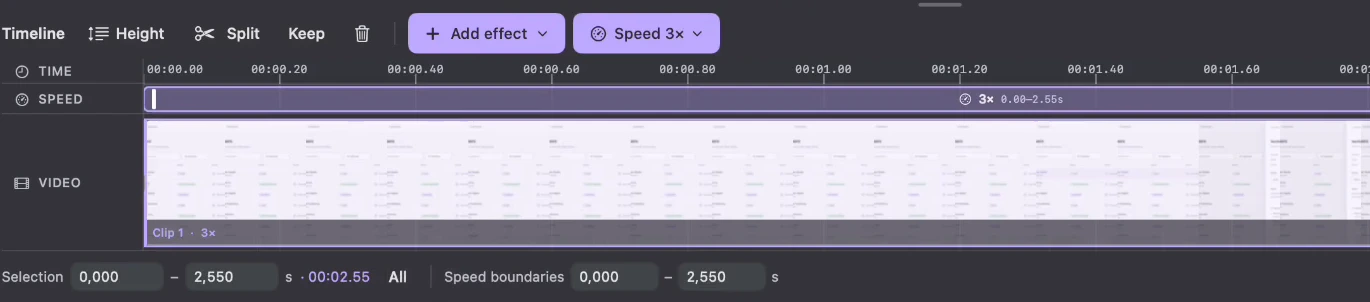
The selected section plays at 3× and has a shorter playback duration. View full size Preview the edited timeline
Play from before each cut through the following action. Check zooms, blur intervals, audio and any camera transitions. Undo a change if it removes information the viewer needs, and review caption timing against the final edit.
A few things to check
Can I undo a cut or speed change?
Yes. Use Undo in the editor. Keep an editable saved project for later revisions rather than relying only on the flattened export.
Why did a delete remove an effect?
The delete action follows the selected item. Select the video range you intend to remove, rather than a Blur, Zoom or text block.
Do I need to generate automatic zooms again after a cut?
Existing zooms stay linked to their source content as the timeline changes. Review them in the edited playback; regeneration is an explicit action, not something the editor does after every cut.