
Before you start
Open a video with recorded speech. Pick one quiet sentence and one louder sentence, then listen at a comfortable volume. If you need only to reduce background noise, start with the Noise reduction guide.
Listen to Original first
Open Audio and choose Original for the track containing your voice. Play a quiet and a loud part of the explanation. Changing the track's Volume raises or lowers the entire track; it does not reduce the difference between those passages.
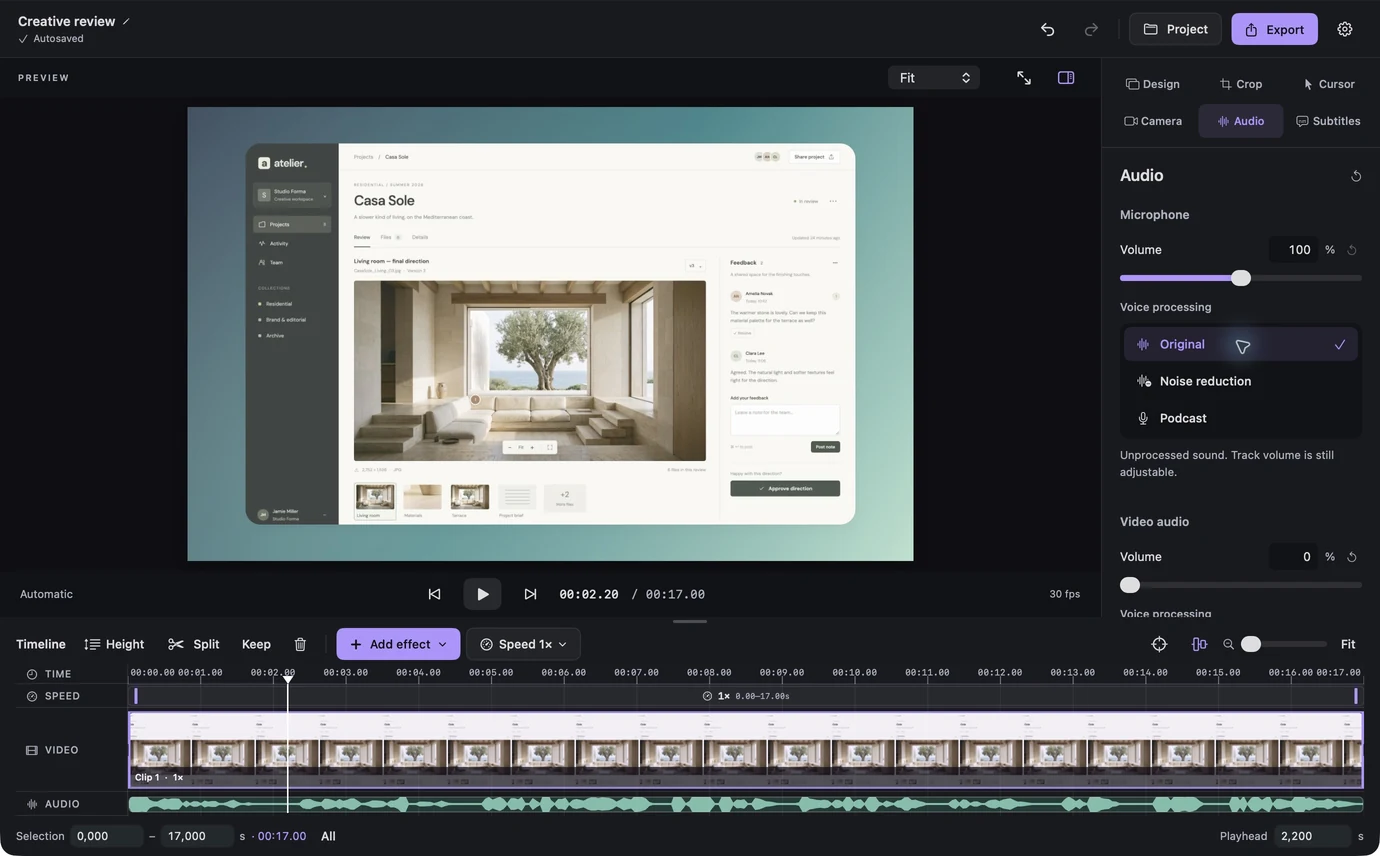
Original voice mode selected before comparing quieter and louder speech. View full size Choose Podcast for that voice track
Select Podcast under Voice processing. The local processing reduces noise, compresses louder passages and applies gentle voice equalization. After the preview updates, listen to the same sentences again. Compression changes the variation within the recording; the volume control still sets its place in the final mix.
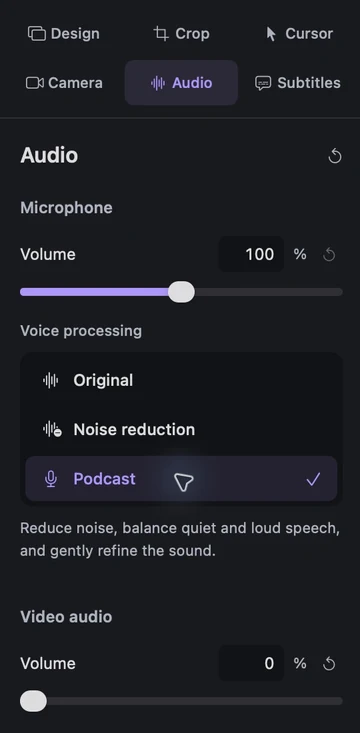
Podcast selected in Lorivelle with the explanation of its speech processing. View full size Check the voice, not just the loudness
Compare the quiet sentence, emphasized words, breaths and the pause after a sentence. Listen for clear words and a tone you want to keep. Choose Noise reduction when you prefer a lighter treatment, or Original when your recording already works well. The three examples above retain the same playback position when you switch.
Set a comfortable mix
Use the voice track's Volume control to balance the result against system sound. Do not push the level merely to make the processed version sound more impressive. Podcast is intended for spoken explanation; use Original for music, game sound or other audio whose dynamics you want to retain.
Review, save and export
Play the complete explanation once, including its first and last words. Save the .screenrec project to retain the original tracks and settings, then export. You can return to Audio and choose another mode later. Preview and export use the same processing, and saving and export require a valid license.
A few things to check
Does Podcast mode change my original audio file?
No. Lorivelle renders the selected processing in preview and export. The original recording remains available, and selecting Original removes the processing.
Do I need the caption speech model for Podcast?
No. Voice processing and caption recognition are separate features. Podcast runs locally without downloading the caption model.
Can I apply Podcast to imported narration?
Yes, when the imported video has an audio track. Choose Podcast under Video audio and compare the result. If that track also contains music, the processing affects the combined sound.
Is this a separate podcast recorder?
Podcast is a voice-processing mode for speech in your Lorivelle video. Lorivelle remains a screen recorder and video editor.