
Before you start
Record directly in Lorivelle with a separate mouse track. Automatic zooms need the saved click data; a flat imported video does not contain it. You can still add manual zooms to an imported recording.
Choose the default for new recordings
In Settings, choose Off, Subtle or Focused for automatic zooms. Subtle is the default for a new recording and can zoom up to 1.6×; Focused can reach 2×. These are maximum strengths, not a guarantee that every click will use the full amount. Existing projects are not regenerated just by opening them.
Record a complete action
Keep the navigation, action and result in the take. Nearby clicks can share one stable focus; a double-click does not need an extra zoom. If the action or drag spans too much of the screen, Lorivelle can reduce or skip the zoom so the action stays visible.
Generate or remove the automatic zooms
Open Cursor in the editor and expand Auto zooms. Choose Subtle or Focused, then Generate auto zooms to create the editable timeline blocks. Remove auto zooms removes the unchanged generated blocks. Generate and remove can each be undone with a single Undo.
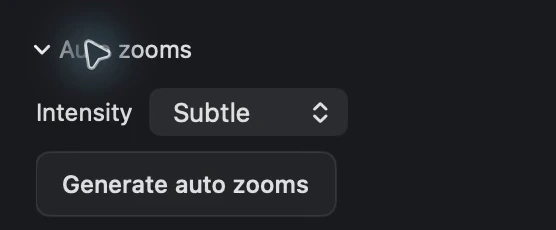
Choose an intensity and generate or remove automatic zooms. View full size Refine a zoom in the timeline
Select its Zoom block and adjust the target, strength or interval. Keep the label, control and result in the frame. Changing those settings makes the zoom your own edit, so generating again preserves it alongside existing manual zooms.
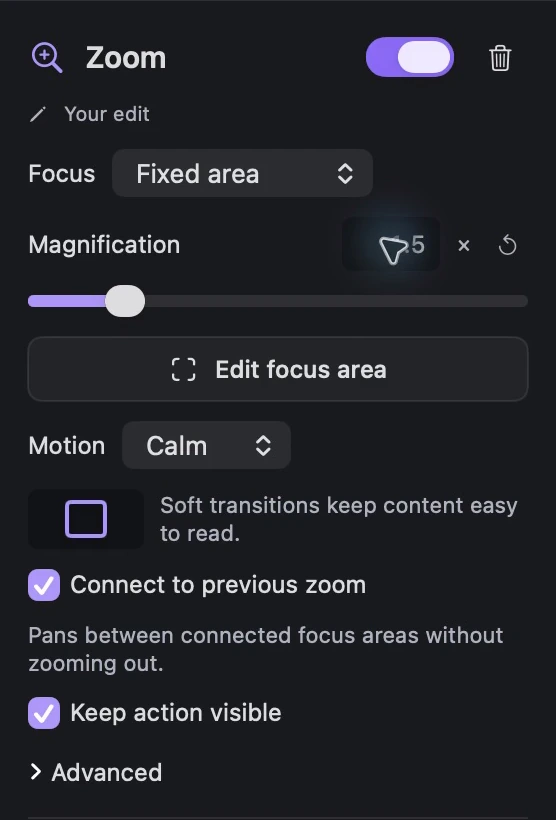
Select a generated Zoom block and reduce its magnification to 1.5×. View full size Review after cutting or changing speed
Cuts and speed changes adjust the existing zooms with their content; they do not silently generate a new set. Play through the edit and check the transition before and after each action. Prefer a quieter zoom when a closer view would cut off the useful context.

Automatic zooms remain separate editable blocks on the effects track. View full size
A few things to check
Why is Generate auto zooms unavailable?
Check that the recording has a separate mouse track and that the mode is Subtle or Focused. An imported video or a recording with only an embedded cursor has no saved click data for this analysis.
Will generating again erase my manual zooms?
No. Existing manual zooms and generated zooms whose target, strength or interval you changed take priority. Regeneration replaces only unchanged automatic zooms in the available intervals.
Does every click get a zoom?
No. Related clicks are grouped, and candidates that cannot keep the action safely visible may be reduced or skipped. The purpose is a readable workflow, not an effect on every click.