
Before you start
Open a Lorivelle project or an MP4, MOV or M4V. Pick an interval that includes the action and its result. Fixed area works without a separate mouse track; Follow mouse needs the mouse track from a Lorivelle recording.
Add Zoom to the useful interval
Move the playhead to the action or select its interval, then choose Zoom from Add effect. Select the new Zoom block on the timeline to open its controls. Set Start and End, or move and resize the timeline block, so the closer view covers the moment you want to explain.
Choose a fixed target
Under Focus, choose Fixed area. Choose Edit focus area, then move or resize the outlined area in the preview and confirm with Done. Frame the label, control and result together, rather than only the pointer. Use the area fields when you need numerical control.
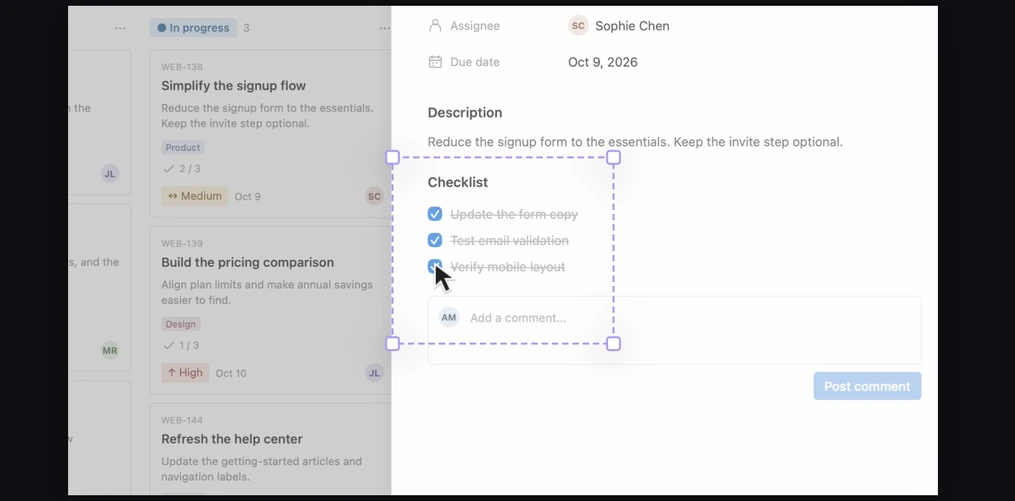
An editable focus area around the task checklist. View full size Set the strength and transition
Adjust Magnification from 1× to 4×. Use the smallest amount that makes the action readable. Choose Calm or Direct movement. Open Advanced for Zoom in and Zoom out, from 0 to 2 seconds each. Connected zooms use those controls at the beginning and end of the whole camera move; the transition between connected focus areas is set separately.
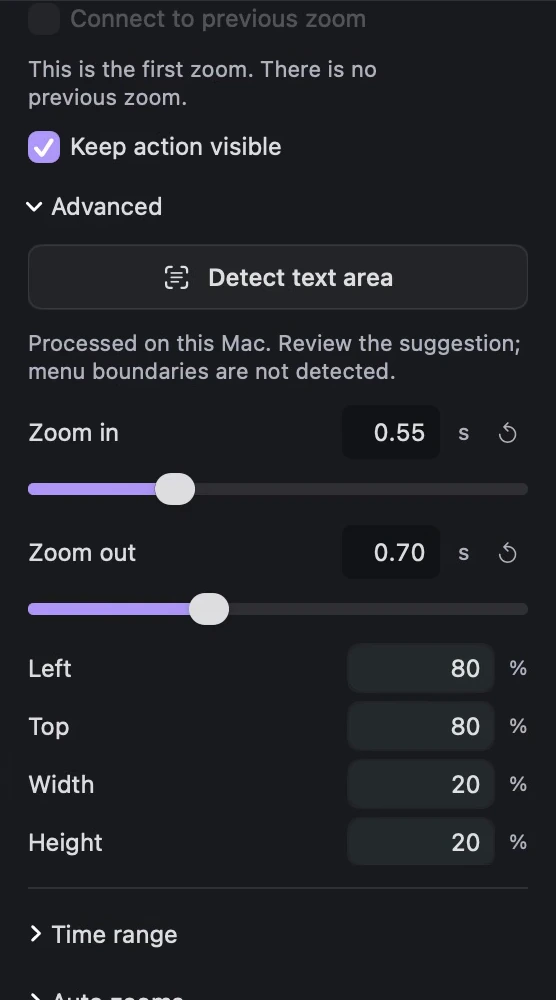
Set Zoom in and Zoom out under Advanced for the selected Zoom block. View full size Use Follow mouse only when it helps
With a separate mouse track, choose Follow mouse under Focus if the important action moves through the screen. Check the whole interval. A freely moving pointer can pull a field's text out of the frame; choose Fixed area for long text boxes or panels where the full content matters.
Preview the approach, action and return
Play from before the block to after it. Confirm that the action remains understandable and that the zoom returns calmly to the full composition. Adjust the target, strength or timing and preview again. Save the editable project for later changes; the exported video contains the finished zoom.
A few things to check
Can I zoom into an imported video?
Yes. Import MP4, MOV or M4V, add a Zoom block and choose Fixed area. Follow mouse and automatic click analysis need a separate recorded mouse track.
Why does the zoom cut off the text I want to show?
The target may be too close to the pointer or the zoom may be too strong. Choose Fixed area, edit its focus area and reduce Magnification until the label, content and result are visible together.
Can I change or remove the zoom later?
Yes. Select its timeline block to change the target, magnification, easing or interval. Remove the selected effect to delete it, or use Undo to reverse the last edit.