
Before you start
Open a Lorivelle project or import a video. Background styling works with either and does not need separate cursor data. Choose the destination format before tuning the frame.
Choose the output format
Open Design and choose Automatic, 16:9, 9:16, 1:1 or 4:5. Automatic follows the recording. The other formats place the screen proportionally inside that canvas, so a wide interface is not stretched into a portrait image. Crop first if you need to show a smaller part of the source.
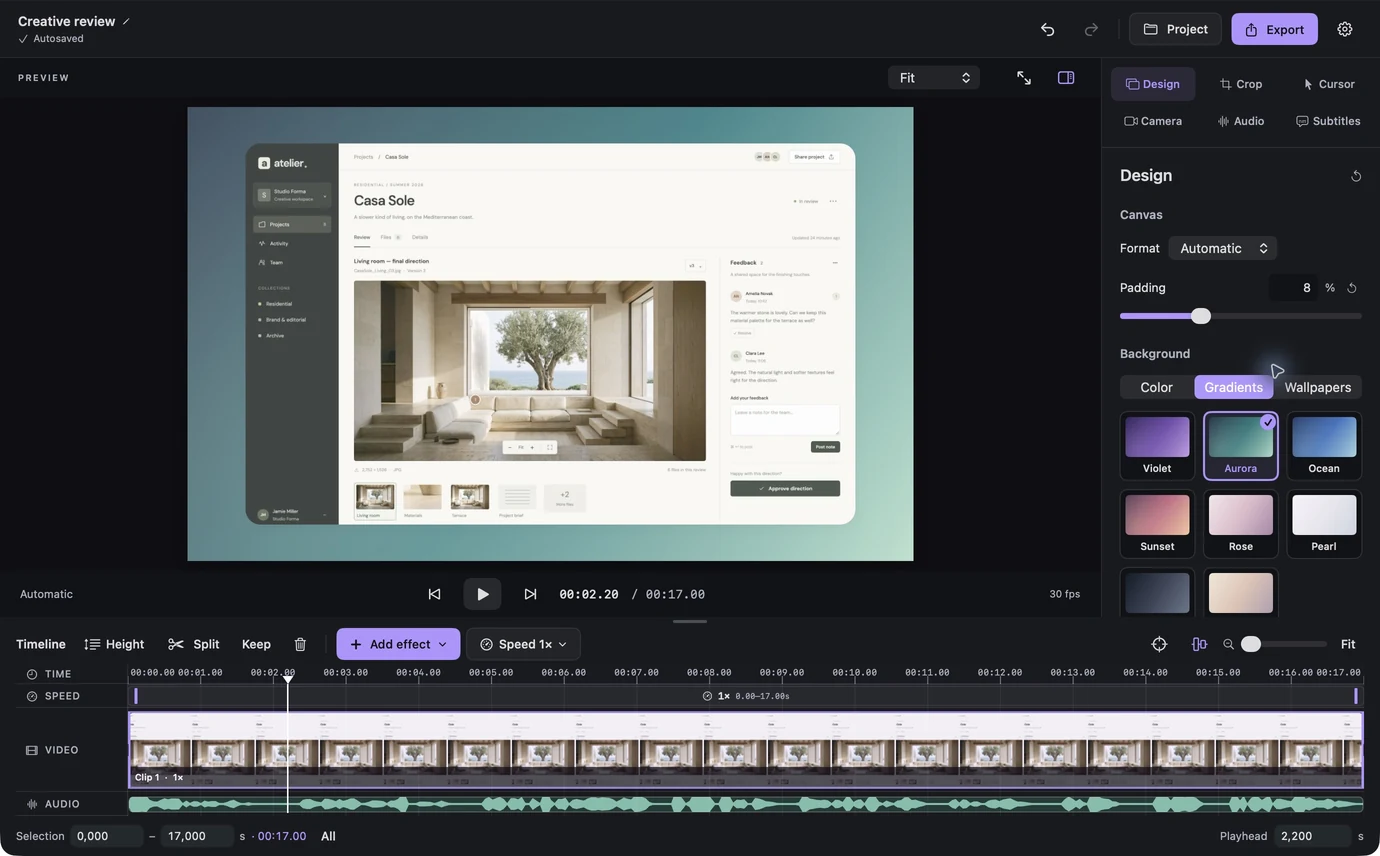
An original creative-review workspace framed in the Lorivelle Design inspector. View full size Give the background room with Padding
Increase Padding slightly to reveal the background around the screen. When a selected preset is hidden by an Automatic canvas with zero padding, use Add padding beside the background choices. It starts at 8%; reduce that if labels become small. You can also adjust Padding directly and undo either change.
Choose Color, Gradients or Wallpapers
Color offers five quick choices and a color picker. Gradients contains Violet, Aurora, Ocean, Sunset, Rose, Pearl, Graphite and Dawn. Wallpapers offers Silk and Dune. Select a thumbnail to apply it; the selected option has a checkmark. You can change the background later without changing the source recording.
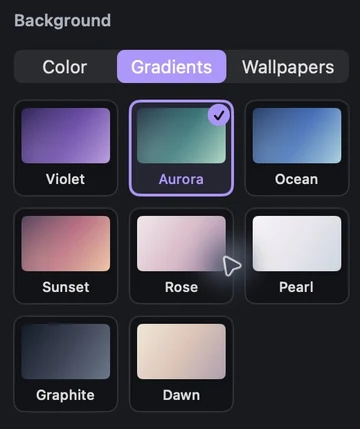
Named gradient thumbnails and the selected background checkmark in Lorivelle. View full size Refine corners and shadow
Use the Screen controls to adjust Corner rounding and Shadow separately. Keep the shadow subtle and the screen clearly separated from its background. When Mobile frame is enabled, it supplies its own rounding and shadow; switch it off to use the independent screen controls.
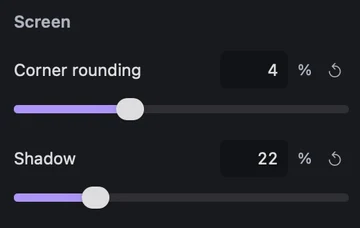
Independent Corner rounding and Shadow controls beside a styled screen recording. View full size Keep the style editable
Save the .screenrec project to keep its background, padding, rounding and shadow. Use Save as when you want a separate editable variation. These are project settings and bundled background presets; Lorivelle does not currently provide a shared team preset library or custom wallpaper upload.
Check the actual viewing size
Preview the complete workflow, including zooms, menus and camera layouts. Compare the composition at the width where it will appear on your website or phone. Reduce padding or crop unused areas when the important interface becomes too small, then export and inspect the result.
A few things to check
Why does changing the background seem to do nothing?
With Automatic format and zero padding, the recorded screen can fill the canvas. Add some Padding to reveal the selected background.
Can I use these backgrounds offline?
Yes. The colors, eight gradient presets and two wallpaper presets are bundled with Lorivelle. Preview and export use the same background renderer.
Why are rounding and shadow disabled?
The Mobile frame supplies its own corners and shadow. Disable Mobile frame in Design to adjust the independent screen rounding and shadow.
Can I change the background after exporting?
Reopen the saved .screenrec project and change Design. A finished MP4 contains the rendered composition, so keep the editable project for future changes.