
Before you start
Record with the camera enabled. Layouts use the separate camera track in that recording. When there is no camera image, Lorivelle falls back to screen only.
Choose the first layout
Move the playhead to the beginning and open Camera in the inspector. Choose Fullscreen camera for an introduction, Split screen to show your face beside the work, Camera overlay for an inset or Screen only to give the application the frame.
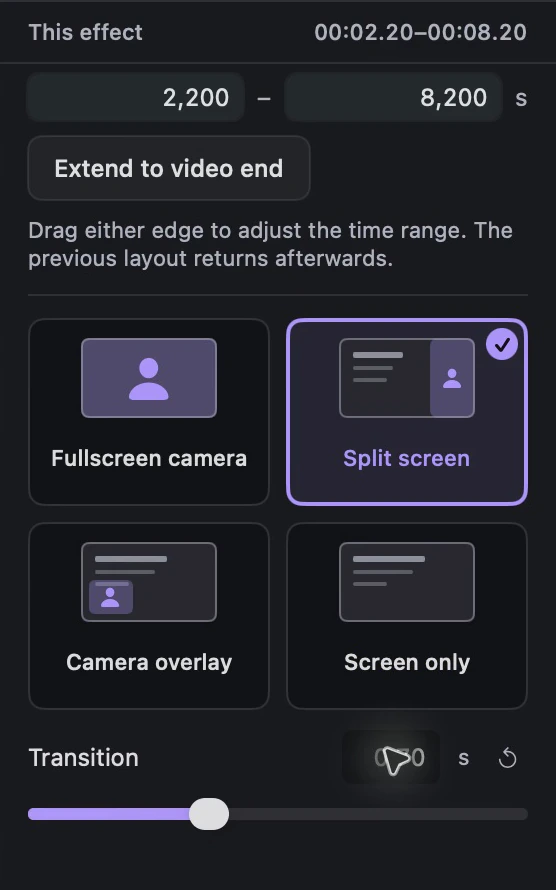
Lorivelle camera layout inspector with selection and transition duration. View full size Choose the interval and apply a layout
Select the interval you want to change, then choose a layout in Camera. Without a selected interval, the choice applies to five seconds from the playhead, bounded by the end of the video. Move to the next part of your explanation and choose its layout. Each layout section is labelled on the effects track.

Labelled camera layout sections in the Lorivelle timeline. View full size Adjust a transition or move a change
Select a layout block to change its mode or transition duration. The default transition is 0.5 seconds; use 0 for a direct cut. Adjust the block's interval to retime the layout. Preview its boundaries and the surrounding layouts after each change.
Keep the screen and face clear
For Camera overlay, adjust the position, size, rounding and mirroring in Camera. Keep the inset clear of the work. Screen zooms affect the screen area, while the camera remains a separate layer. In portrait split screen, the screen and camera stack vertically.
A few things to check
Why are the camera layouts unavailable?
The recording needs a separate camera track. Enable your webcam before recording. An imported screen video without that track does not provide a camera image for these layouts.
Can I change a layout after recording?
Yes. Choose a layout for a selected interval or for five seconds from the playhead, then edit its camera section on the timeline. Choose a different mode, adjust the interval or change the transition duration.
Can I use these layouts in a vertical video?
Yes. Select 9:16 in Design. Split screen stacks the screen and camera in portrait formats, and the other three layouts are also available.