
Before you start
Open a Lorivelle project or import a compatible video. Look through the recording before cropping so you know which controls, menus and results need to remain visible.
Open Crop and choose the useful area
Select Crop in the inspector. Move the outlined area in the preview and resize its handles around the part of the screen you need. Keep a little space around important labels, rather than framing only the mouse pointer.
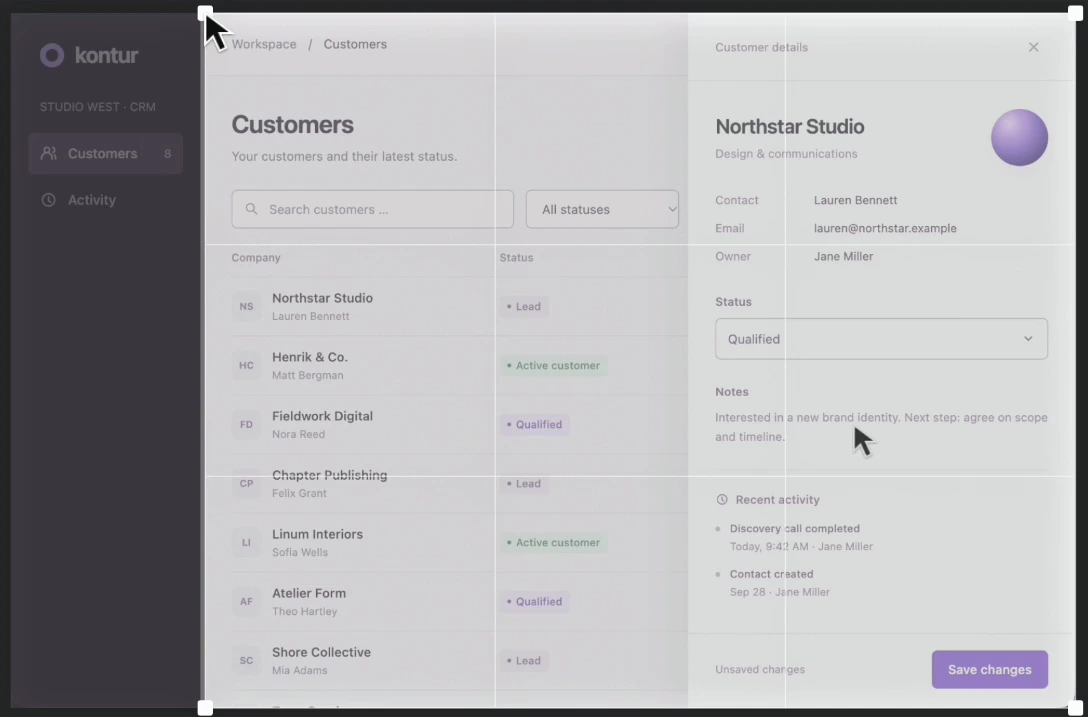
Move the crop handles to leave out the sidebar and keep the task in view. View full size Refine the crop numerically
Use Left, Top, Width and Height for a precise crop in source pixels. Apply the crop when the preview contains the whole task. You can return to Crop and change it later; the original source recording is preserved.
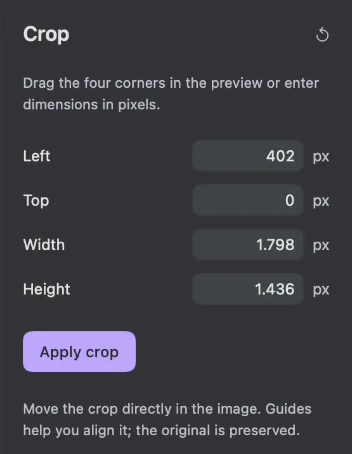
Set Left, Top, Width and Height, then apply the crop. View full size Choose the output shape
In Design, choose Automatic, 16:9, 9:16, 1:1 or 4:5. The screen keeps its proportions inside that canvas. Use padding and the background to compose the remaining space, rather than stretching a wide interface to fill a portrait frame.
Check every action in the crop
Preview menus, scrolling, zooms and camera layout changes. A crop that works for the first frame may exclude a later action. Widen it when that action matters, then inspect the export at its actual display size.
A few things to check
Does cropping delete the original screen recording?
No. The project retains the source and applies the crop when rendering. Save the editable project if you want to change the framing later.
Is cropping the same as a vertical canvas?
No. Crop chooses the source area. A 9:16 canvas sets the exported video's proportions. Use both when you need a portrait recording with a focused, readable screen.
Can I crop an imported video?
Yes. Import an MP4, MOV or M4V and adjust its screen crop. Separate mouse and camera controls depend on the tracks recorded with Lorivelle.