
Before you start
Open a recording or import a video. Find the first frame where the private detail becomes visible. You can record and edit for free; saving and exporting require a valid license.
Add Blur at the right moment
Move the playhead to the detail you want to hide, or select its time interval. Choose Blur from Add effect. The effect appears as a timeline block, with its controls in the inspector.
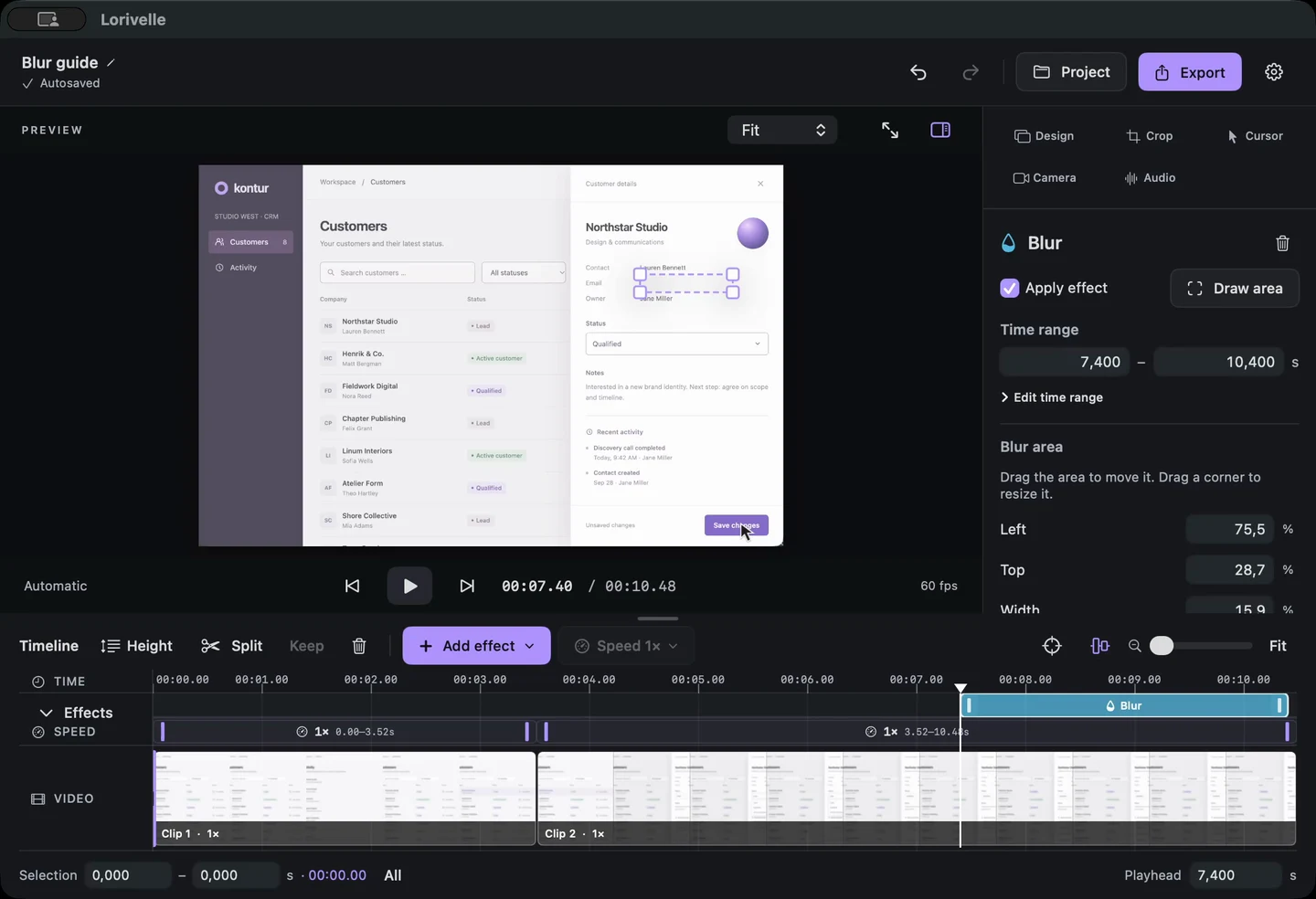
Blur effect selected in the Lorivelle timeline and inspector. View full size Draw the area and set the strength
Draw over the information in the preview, leaving a little room around its edges. Adjust Blur strength until the detail is unreadable. Inspect the result at the size your audience will actually watch.
Move or resize the existing blur
Select the Blur block on the timeline. Drag inside its outlined area to move it, or drag a corner handle to resize it. You can also edit Left, Top, Width and Height in the inspector. Draw area replaces the existing region when you need a completely different selection.
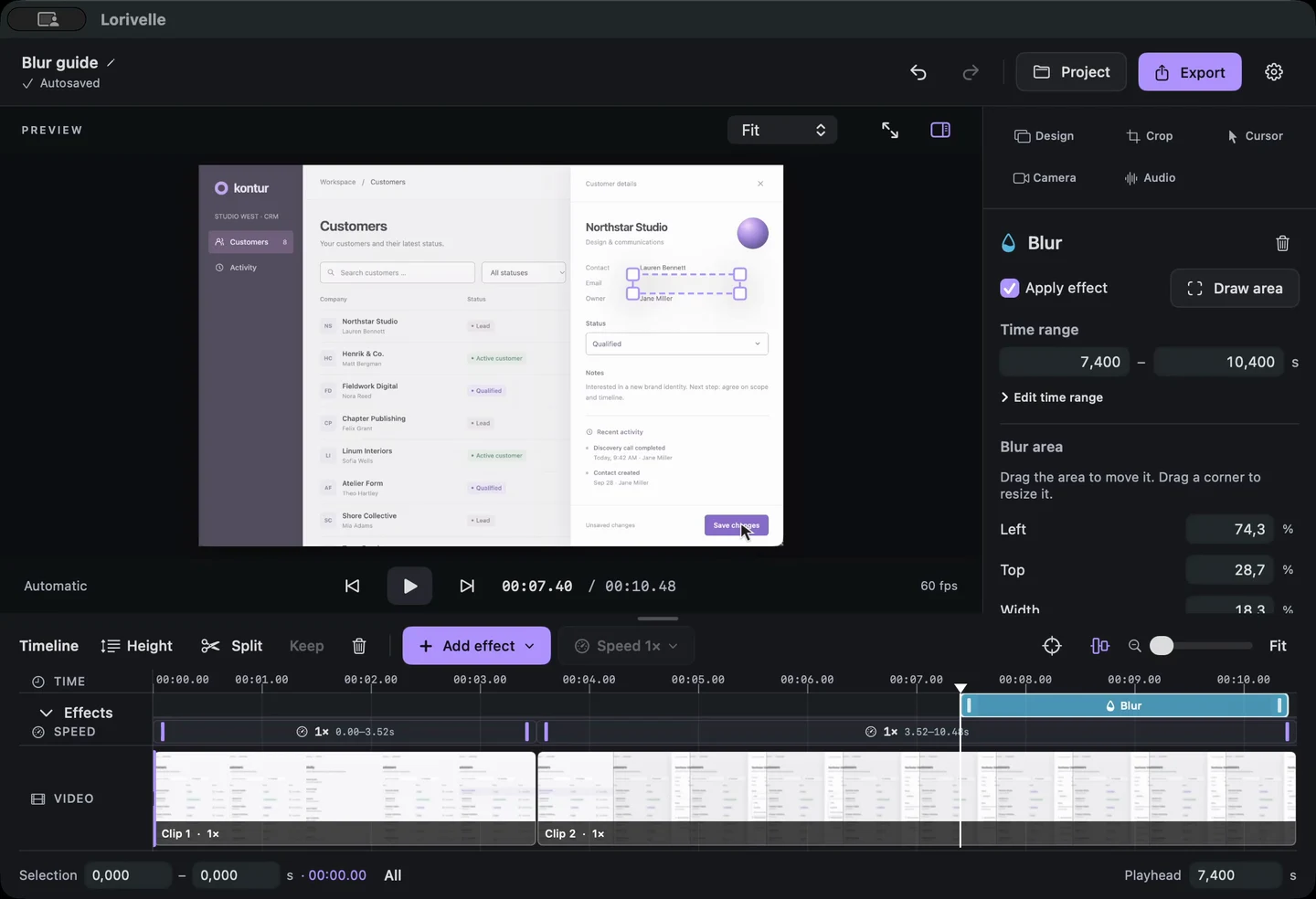
An existing blur region with move and resize handles over a customer email. View full size Set the full interval and review it
Set Start and End in the effect inspector, or adjust the block's timeline edges. Scrub through the entire interval before exporting. A blur is tied to an area of the recorded screen; if the private information moves or the page scrolls, adjust your edit so it stays covered.
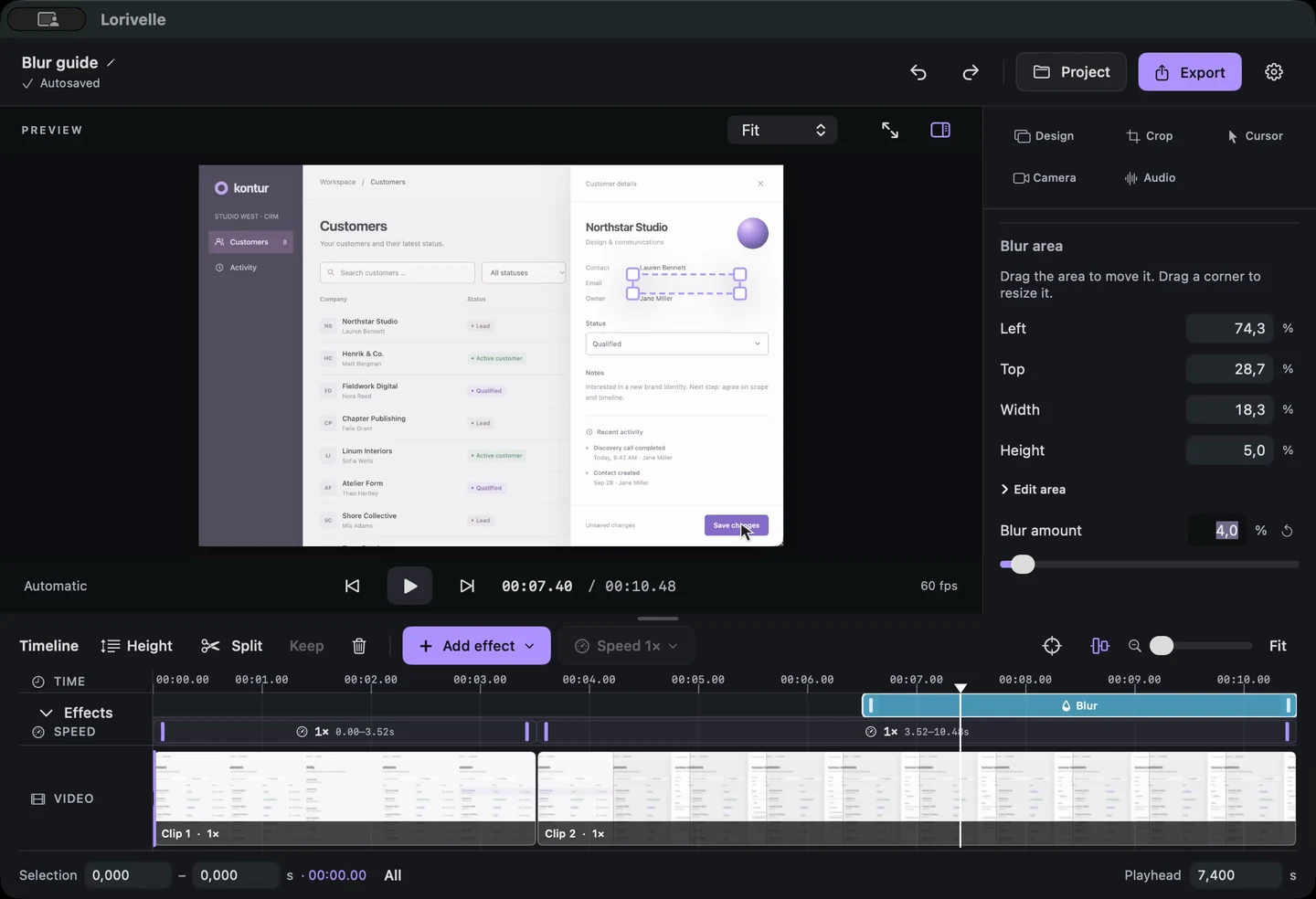
Start and end time controls for a blur in Lorivelle. View full size
A few things to check
Can I change a blur after placing it?
Yes. Select its timeline block, then move or resize the outlined area in the preview. The inspector also offers numerical area controls, strength and start/end times.
Does the blur automatically track a face or text?
No. The blur covers the screen region and time interval you choose. Check any movement and scrolling, and use separate intervals when the information changes position.
Does the blur change my original recording?
The edit is applied when Lorivelle renders the video. Keep the project if you want to change the effect later, and share the finished export rather than the original source file.